

Discord integration allows interaction with the Gclaw AI assistant in Discord servers. This requires creating a Discord bot application and configuring the Gclaw instance with the bot token. A running Gclaw instance, a Discord account, and administrator access to a Discord server are required.Documentation Index
Fetch the complete documentation index at: https://gcore.com/docs/llms.txt
Use this file to discover all available pages before exploring further.
Step 1. Create a Discord bot
To create a bot application and obtain a bot token:- Go to the Discord Developer Portal.
- Click New Application.
- Enter a name for the application (such as “Gclaw Bot”) and click Create.
- In the left sidebar, click Bot.
- Click Add Bot, then confirm by clicking Yes, do it!.
- Under Privileged Gateway Intents, enable Message Content Intent to allow reading message content.
- Under Token, click Copy to copy the bot token. If no token is visible, click Reset Token to generate a new one.
Step 2. Add the token to OpenClaw
In the Gclaw chat interface, provide the bot token to the assistant: “I have a Discord bot token: YOUR_TOKEN_HERE - can you add it to my configuration?” The assistant applies the token directly to the OpenClaw configuration. The gateway automatically restarts and the Discord bot becomes active within seconds.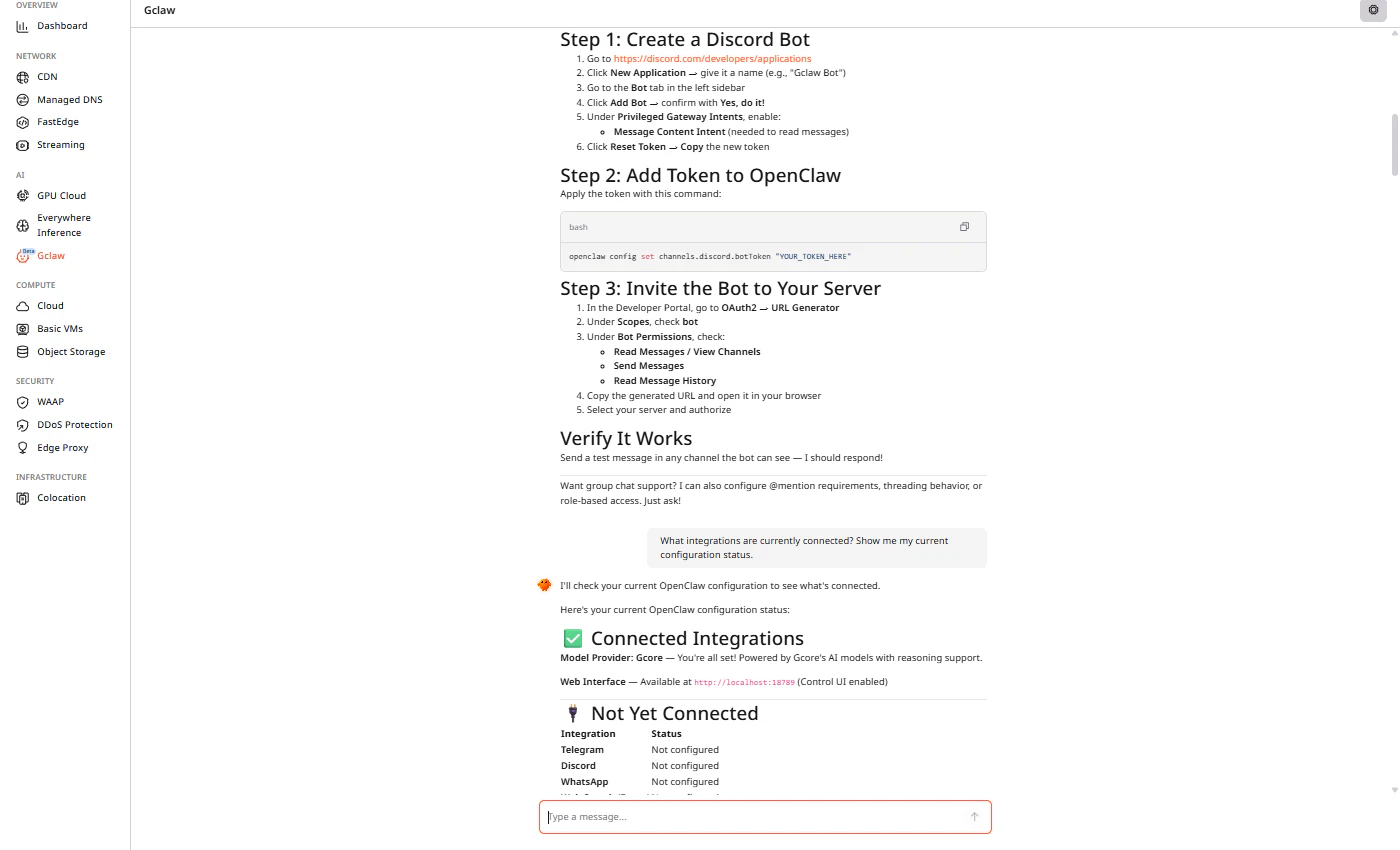
Step 3. Invite the bot to a server
To add the bot to a Discord server:- In the Discord Developer Portal, navigate to the application.
- In the left sidebar, click OAuth2 > URL Generator.
- Under Scopes, select bot.
-
Under Bot Permissions, select the following permissions:
- Read Messages/View Channels
- Send Messages
- Read Message History
- Copy the generated URL at the bottom of the page.
- Open the URL in a browser.
- Select the server where the bot should be added and click Authorize.
- Complete any verification prompts.
Verify the connection
After adding the bot to the server, go to a text channel where the bot has access and send a test message mentioning the bot. The Gclaw assistant should respond to the message.Required permissions
| Permission | Description |
|---|---|
| Read Messages/View Channels | Allows the bot to see channels and read messages |
| Send Messages | Allows the bot to send responses |
| Read Message History | Allows the bot to read previous messages for context |
Advanced configuration
Additional Discord configuration options are available by asking the Gclaw assistant:- “Configure Discord to require @mentions”
- “How do I enable threading for Discord?”
- “How do I set up role-based access for Discord?”