Gcore Video Hosting provides a complete video-on-demand (VOD) solution for storing, transcoding, and delivering video content at scale. From educational courses to entertainment platforms, corporate training to media libraries – our platform handles the entire video workflow from upload to playback.

What is Gcore Video Hosting?

Hosted VOD workflows: Upload source files, generate adaptive renditions, organize video libraries, and publish HLS, MPEG-DASH, and MP4 playback from one hosted workflow.

Key capabilities

Upload videos from multiple sources:
  • Direct upload: Drag-and-drop or browse local files from your computer
  • Download from origin: Fetch videos directly from remote URLs
  • Google Drive import: Import videos directly from your Google Drive
  • TUS protocol: Resumable uploads with automatic session recovery for large files
  • Queue management: Upload multiple videos simultaneously with intelligent queuing
  • Batch migration: Migrate entire video libraries from other platforms
Deliver videos in all standard formats:
  • HLS MPEG-TS: Traditional HLS for maximum compatibility
  • HLS CMAF: Modern HLS with chunked encoding
  • MPEG-DASH CMAF: Industry-standard adaptive streaming
  • MP4: Direct MP4 downloads for offline viewing
  • On-the-fly MP4 → HLS/DASH conversion (beta): Automatically convert MP4 to streaming formats
  • Quality range: SD, HD, Full HD, 2K, 4K, up to 8K resolution support
Enhance your video content:
  • Adaptive bitrate (ABR): Automatic quality renditions for smooth playback
  • Multi-audio support: Multiple audio tracks and language options
  • Subtitles & closed captions: Support for multiple subtitle languages and accessibility
  • Custom thumbnails: Auto-generated or upload custom video posters
  • Video organization: Tags, collections, and metadata for easy management
  • VOD2Live simulation: Convert on-demand videos to simulated live streams
Streamline your video operations:
  • Automatic transcoding: Generate multiple quality renditions automatically
  • Library organization: Tags, search, and filtering for large video collections
  • Custom players: Branded video player with customizable UI
  • Analytics: Track views, engagement, and playback metrics
  • API access: Programmatic upload and management via REST API
  • Batch operations: Bulk upload, update, and manage multiple videos

Why choose Gcore Video Hosting?

  • Complete workflow: Upload, transcode, store, and deliver—all in one platform
  • Global CDN: 210+ edge locations ensure fast playback worldwide
  • Scalability: Handle 10 videos or 10 million – storage and bandwidth scale automatically
  • Format flexibility: Deliver in HLS, DASH, and MP4 for maximum device compatibility
Ready to start hosting videos? Follow the steps below to upload your first video.

Step 1. Upload a video to the customer portal

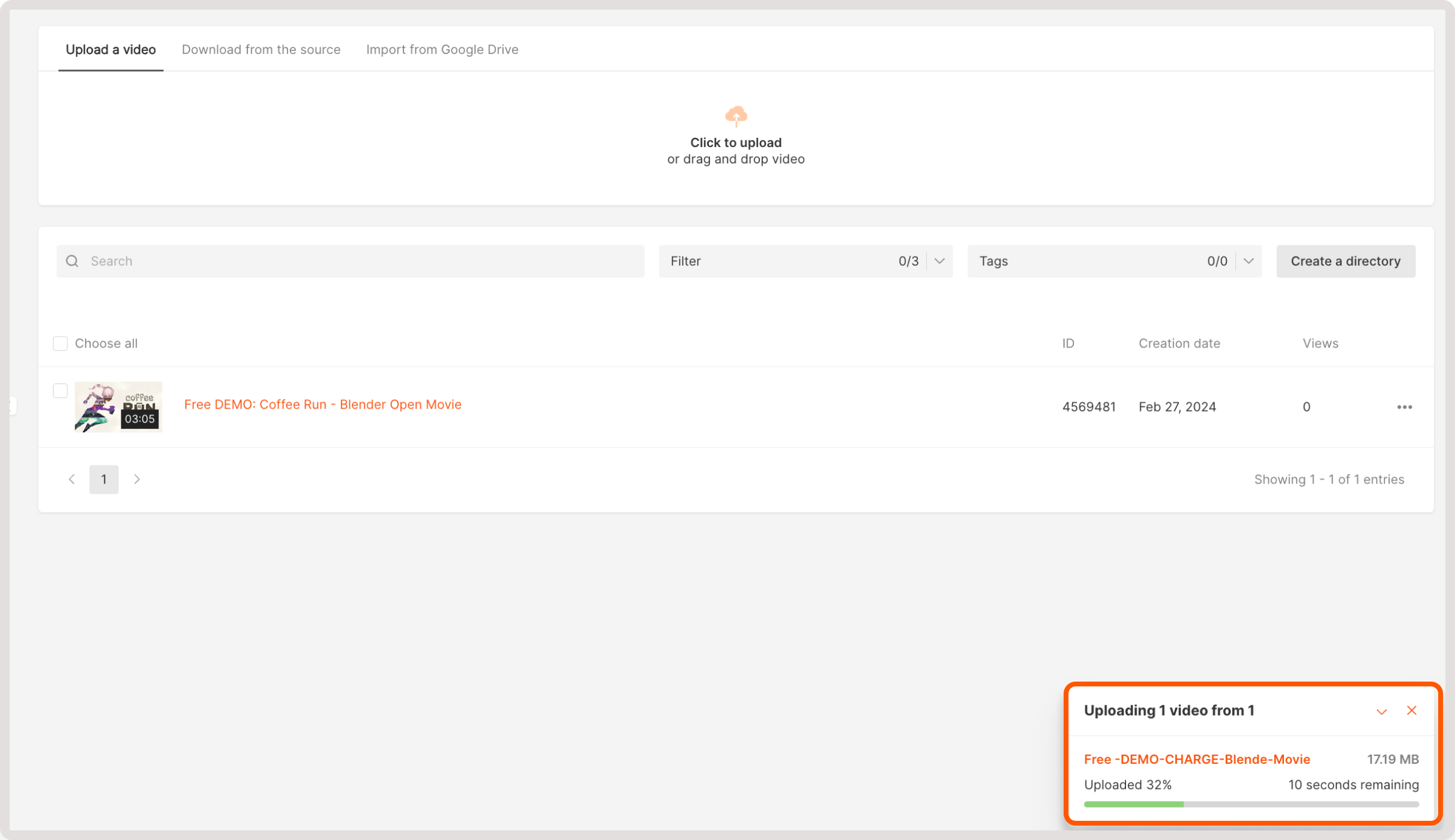
Navigate to the Video Hosting tab and upload a video using one of the following actions:
  • Upload the video. On this tab, you can add locally stored videos. Either click the Click to upload button or drag and drop your files to the designated upload area.

Video Hosting tab
  • Download from the source. Here you can upload a video from the origin by specifying the video title and video origin URL.

Video Hosting tab
  • Import from Google Drive. To add a video, click the Click here area, sign in to your Google account, and then choose the required video from your Google Drive.

Video Hosting tab
Wait until your video is uploaded and processed. Waiting time varies depending on video size and internet speed.
Wait until your video is uploaded

Step 2. Update video settings

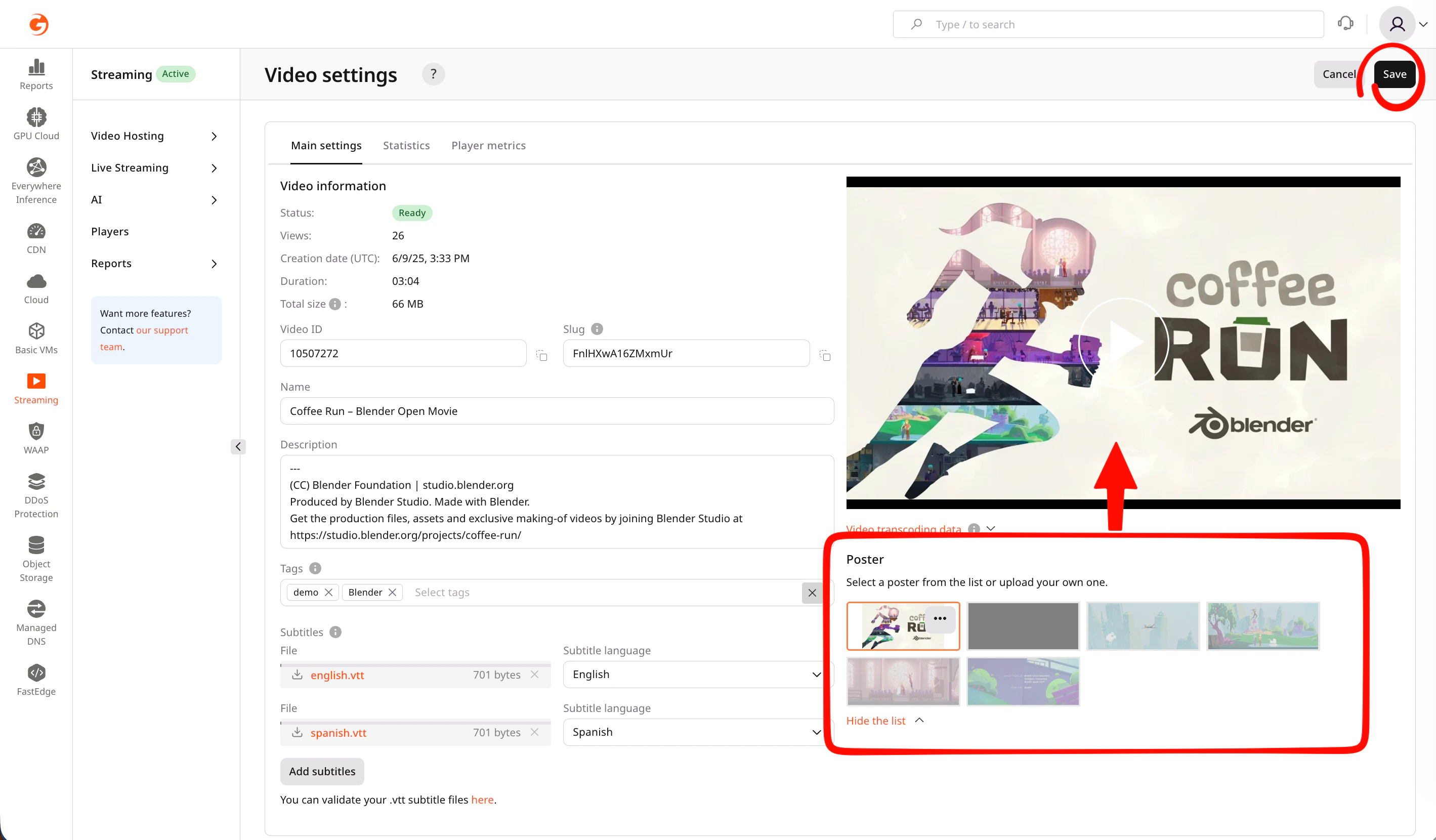
If you need to adjust some video configuration, get links to export the video or set up subtitles and tags. You can do so on the Main settings tab: 1. Open video settings by clicking the video name or the three-dot icon next to it.
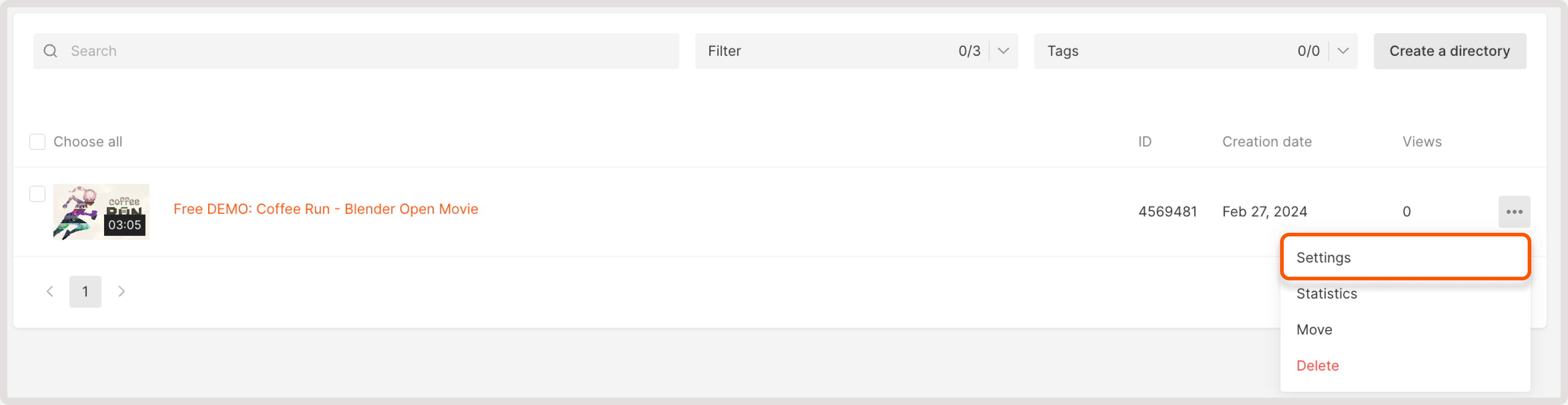
settings of the uploaded video
2. Update the following video settings if necessary:
  • Name : Change its name (it will be displayed in the Gcore Customer Portal)
  • Description : Enter a description (it will be displayed in the Gcore Customer Portal)
  • Player : Select custom player, if you enabled the Players feature
  • Tags : Select tags for a video
  • Subtitles : Add subtitles and choose a subtitle language
  • Screensaver : Select a screensaver from screenshots or upload a screensaver from your computer
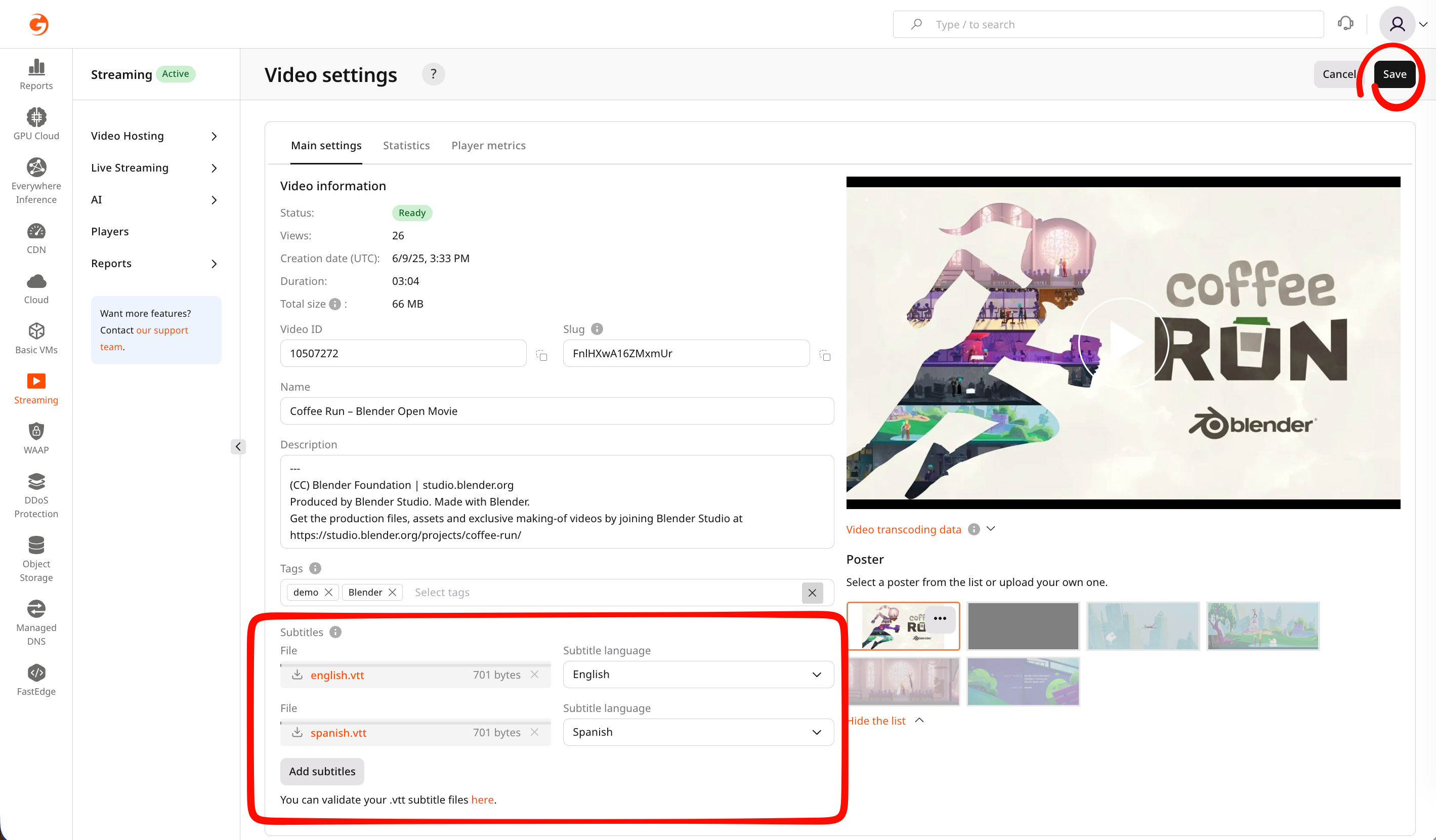
Video settings
3. (Optional) After you upload the video, it’ll be transсoded with different qualities and bitrates. Click the Video transcoding data link under the video to check the transcoding details. 4. Select one of the automatically created video posters or upload a new one from your local storage.
Video poster settings

Step 3. Choose a player UI customization and video projection

Customize the functionality and appearance of a built-in HTML web player for the uploaded video. Note that these settings apply only to the built-in player and won’t affect viewers using external or OS-native players. In the Player dropdown, you can choose the existing configuration. To add a new built-in player and customize its settings, refer to our dedicated guide.

Step 4. Export video

In the Links for export section, choose the relevant export method:
  • Video page URL : A Web player URL to access and play the video directly from a website.
  • HLS manifest URL : A URL to a master playlist HLS (master.m3u8) with MPEGTS container.
  • iFrame embed code : A URL to our HTML video player with the video inside. It can be inserted into an iframe on your website and the video will automatically play on all browsers.
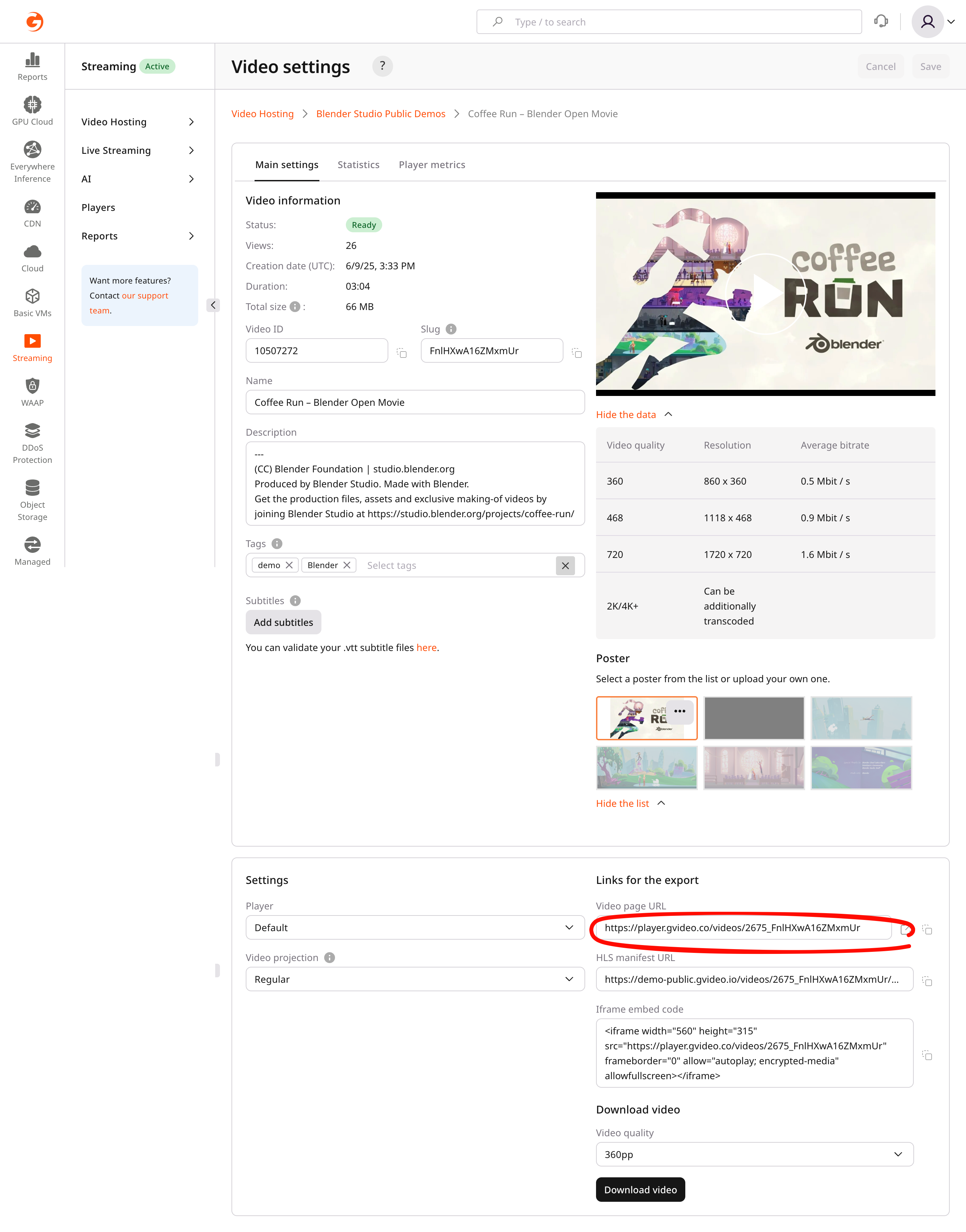
In the Links for export section, you can also choose the video size and download the uploaded video in the required quality by selecting its bitrate and clicking Download video.
Export tab