

A container image registry is a server that stores Docker images. When deploying a custom model, Everywhere Inference pulls the container image from the registry at pod startup. For public registries, no credentials are required. For private registries, Gcore needs stored credentials to authenticate the pull request — that is what a registry record provides. Each registry record stores the hostname of the registry and the credentials (username + password or access token) Gcore uses on the deployment’s behalf. The credentials are not embedded in the deployment configuration — Gcore resolves them from the registry record at pod startup. This means updating credentials in the registry record takes effect on the next pod pull without changing the deployment itself.Documentation Index
Fetch the complete documentation index at: https://gcore.com/docs/llms.txt
Use this file to discover all available pages before exploring further.
When to add a registry
A registry record is required when the container image is stored in a private repository. If the image is publicly accessible (no login required to pull it), set Registry type to Public in the deployment form — no registry record is needed. Private images are common when:- The model weights or fine-tuning data are proprietary and must not be publicly accessible.
- The image is stored in an organization’s private Docker Hub, GitHub Container Registry, or Hugging Face repository.
- The registry is a self-hosted instance not exposed to the public internet.
Add a registry
Navigate to Everywhere Inference > Registries in the Gcore Customer Portal and click Add registry.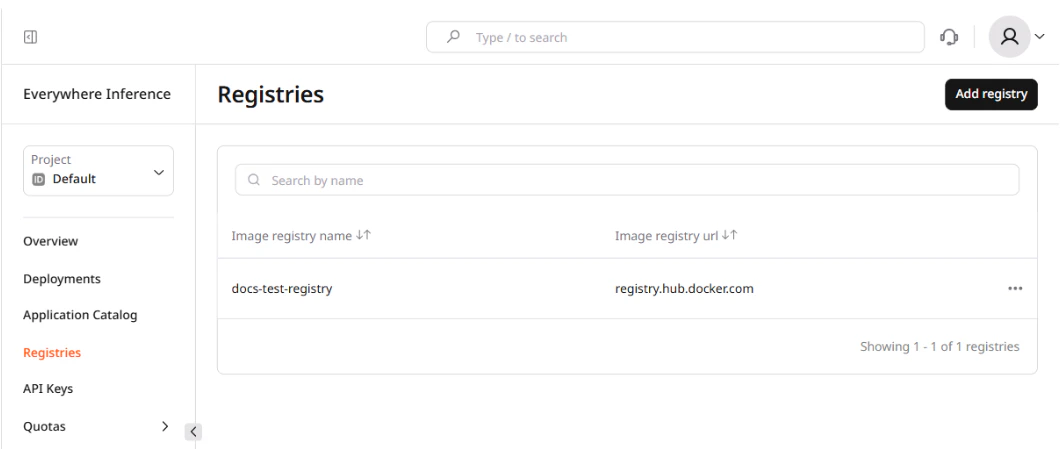
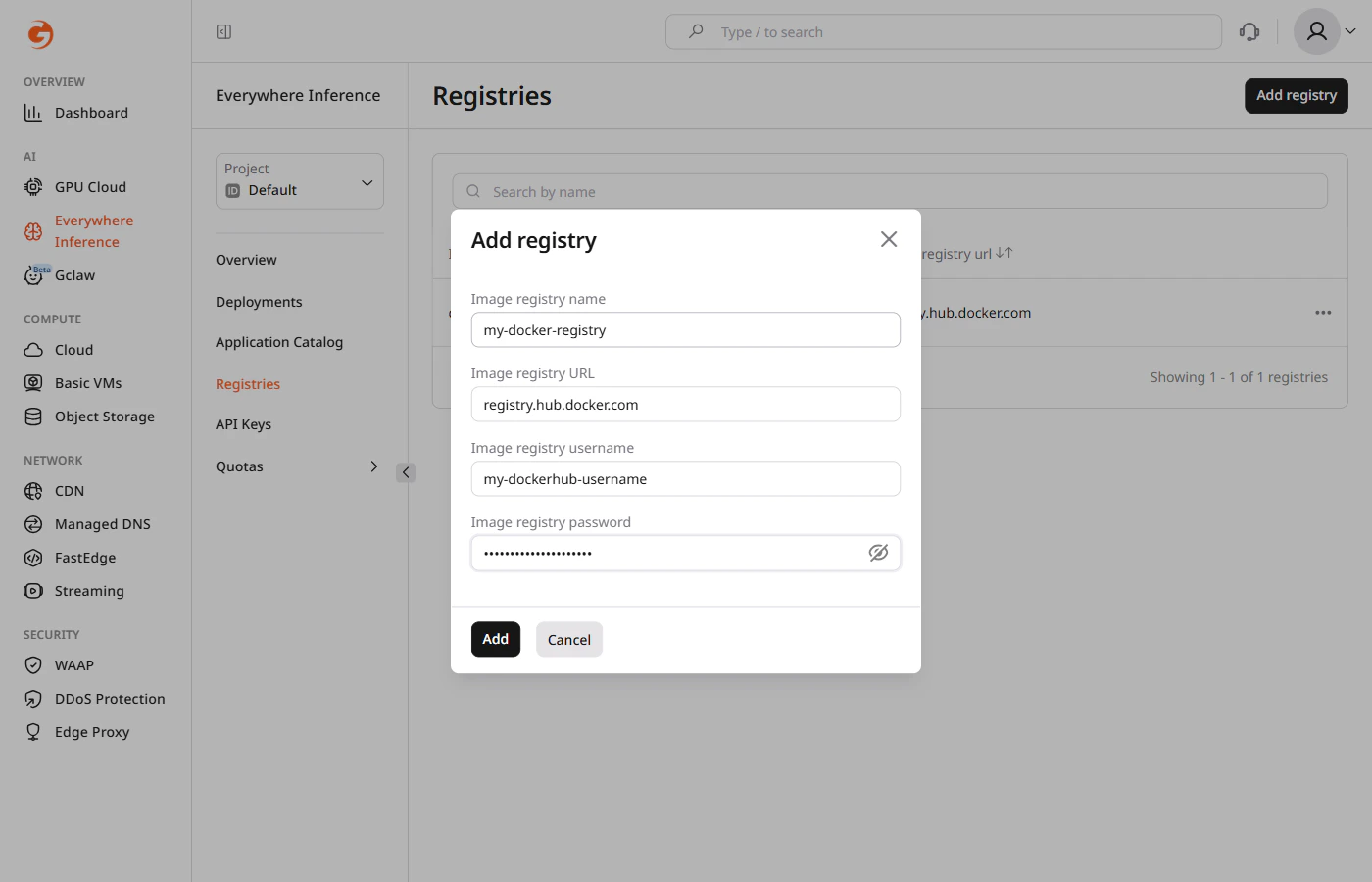
| Field | What to enter |
|---|---|
| Image registry name | A label used to identify this registry in the deployment form. Choose a name that reflects the registry host or the team that owns it. |
| Image registry URL | The hostname of the registry — the domain part only, without https:// or any path. See the table below for common values. |
| Image registry username | The username for registry authentication. For token-based registries, this is often the account name or a fixed string. |
| Image registry password | An access token or password. Use an access token rather than an account password — tokens can be scoped and rotated without changing the account credentials. |
The registry URL is the hostname only. The full image pull address is formed by combining the registry URL with the image path entered in the Model image URL field when creating a deployment:
registry.hub.docker.com/myorg/mymodel:v1.2.Registry URLs and credentials
The table below lists authentication details for commonly used registries:| Registry | Image registry URL | Username | Password |
|---|---|---|---|
| Docker Hub | registry.hub.docker.com | Docker Hub account name | Access token — use a token, not the account password |
| Hugging Face | registry.huggingface.co | Any non-empty string | Access token with read scope |
| GitHub Container Registry | ghcr.io | GitHub account name | Personal access token with read:packages scope |
| GitLab Container Registry | registry.gitlab.com | GitLab account name | Personal access token or deploy token with read_registry scope |